How to Pay with Xentopay
A simple step‑by‑step guide to complete your payment safely and correctly.
1. Before You Start
To make a payment using Xentopay, you will need:
- Your own Xentopay wallet (App / Extension / Website)
- A stable internet connection
- The merchant’s wallet address (shown on the checkout page)
- The Transaction ID (TXID) after sending the payment
2. What You Will See on the Checkout Page
When you select Xentopay as your payment method, the checkout page will show:
- A BUY WITH XENTOPAY button
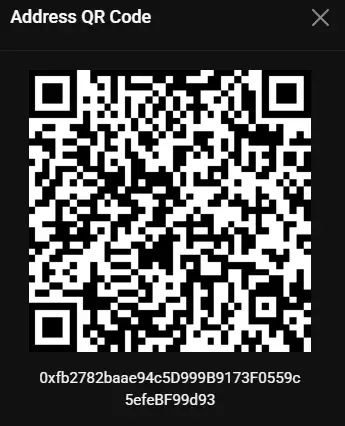
- The merchant’s Wallet ID with a Copy button
- A required field labeled Xentopay Transaction ID
- A help link: Need help? How to pay with Xentopay?
3. Step‑by‑Step: How to Complete Your Payment
Step 1: Copy the Merchant’s Wallet ID
On the checkout page, find the section titled “Send payment to Xentopay Wallet ID”.
Click the Copy button next to the wallet address. The wallet address is now saved to your clipboard.
Tip: Always use the Copy button to avoid typing mistakes.
Step 2: Open Your Xentopay Wallet
Open your Xentopay wallet on your phone or computer.
- Select Send / Transfer / Pay.
- Paste the merchant’s wallet address into the Recipient / To field.
- Set network- BNB Smart Chain/ BEP20
- Enter the exact amount shown on the checkout page.
- Review the details and confirm the payment.
Step 3: Copy Your Transaction ID (TXID)
After your payment is successful, your wallet will show a Transaction ID. You can find it:
- On the payment success screen
- In your wallet’s History / Recent Transactions
- Inside the Details / View on Explorer section
Copy the Transaction ID to your clipboard.
Step 4: Paste the Transaction ID on the Checkout Page
Return to the checkout page on our website.
- Find the field labeled Xentopay Transaction ID.
- Paste the Transaction ID you copied from your wallet.
- Click Place Order to complete your purchase.
Important: We cannot verify your payment without the correct Transaction ID.
4. What Happens After You Submit Your Order
- Your order status will show “On Hold / Pending Verification”
- Our team will verify your payment using the Transaction ID
- After verification, your order will be updated to “Processing” or “Completed”
- If needed, we may contact you for confirmation
5. Common Mistakes to Avoid
- Wrong wallet address: Always use the Copy button.
- Wrong amount: Send the exact amount shown on the checkout page.
- Missing TXID: Without the Transaction ID, we cannot verify your payment.
- Old TXID: Make sure you copy the Transaction ID for the payment you just made.
6. If You Paid but Your Order Didn’t Confirm
If you made the payment but your order did not complete:
- Open your Xentopay wallet
- Find the Transaction ID for your payment
- Contact our support team with:
- Your name
- Your email or phone number
- The Transaction ID
- Payment amount and time
We will manually verify your payment and update your order.
7. Need Help? Contact Support
If you have any questions or issues:
Email: support@xentopay.com
Phone / WhatsApp: support‑number
We’re here to help ensure your Xentopay payment experience is smooth and secure.